Skip to content
ADMIN
Download 2.0.0.55
ModulesSSH
AvailableVersion 1.1.0

SSH

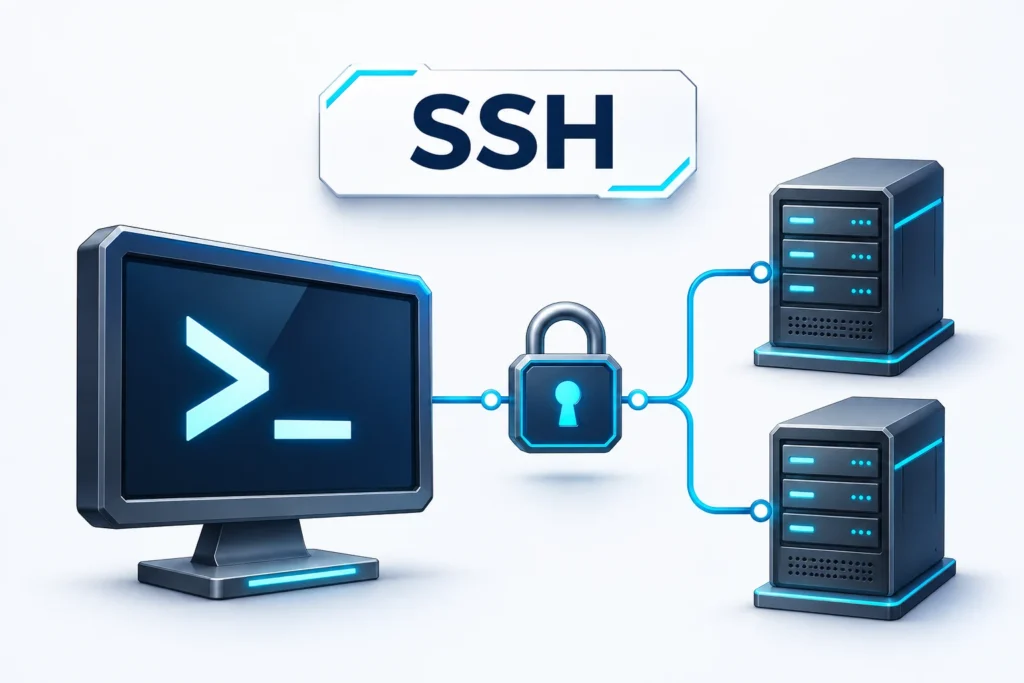
Manage SSH servers directly from YAADMIN AI chat. Save secure connections, organize optional server groups, and diagnose or administer remote systems without configuring a local SSH client.

Free module

Free · Verified package available

SSH

Administer your servers from one chat#

SSH connects YAADMIN to Linux servers, network devices and other SSH-enabled systems. Add your servers in the module settings, verify their host fingerprints, and ask YAADMIN to inspect services, investigate errors or perform administration tasks using the permissions of your remote account.

Keep each connection independent or organize connections into optional groups. A server can belong to several groups, and group membership can be changed without recreating the connection. Run a task on one named server or across a group, with a separate result for each target.

Passwords, private keys and key passphrases stay in YAADMIN's protected Vault; they are not shared with the AI model. Saved host fingerprints identify trusted servers, and an unexpected host-key change stops the connection until an administrator explicitly accepts the replacement.

SSH execution follows YAADMIN's ALLOW/DENY permissions. When execution is allowed for a target, the AI can perform successive non-interactive shell commands needed for your task without individual command approvals. The remote account's operating-system permissions remain the boundary of what it can do. Commands and results are audited without recording saved credentials.

Features#

GET STARTED

Installation & usage

What you need, how to connect, and where to begin.

1. Install SSH#

Open Modules, find SSH by YAADMIN, and install and enable the free module. Open the module's settings. Your YAADMIN administrator must grant the relevant management and execution permissions to your account. Use a YAADMIN Core release with Module SDK 1.6 or later; older SDK versions cannot run the saved-connection interface required by this module.

2. Add a connection#

Open Connections → Add connection. Enter a friendly name, host or IP address, port (normally 22), and remote username. Choose an authentication method:

  • Password: enter the remote account password.
  • SSH key: use Import from file to select the private-key file, or paste its contents.
  • SSH key + passphrase: use Import from file to select the private-key file, or paste its contents and enter its key passphrase.

Only the fields needed for the selected method are shown. The key passphrase unlocks that SSH key; it is not your YAADMIN master password. Optional timeout and other technical options are under Advanced settings.

3. Verify the server and test#

Click Save & test. For a new server, compare its displayed host fingerprint with a fingerprint obtained through a trusted channel, such as your hosting console or server administrator. Explicitly accept the correct fingerprint, complete the connection test and save the connection.

If an existing server's key changes, the connection is blocked. Investigate the change before accepting a replacement fingerprint. Never accept a fingerprint just to dismiss a warning.

When editing an existing connection, leave a credential field blank to keep its saved value. Use the explicit replacement or clearing action when changing a credential. Saved credentials are never displayed again.

4. Optionally create groups#

Open Groups, create a group such as Production, and select its members visually. Connections can belong to several groups or none. Removing a member from a group does not delete the connection. Deleting a group preserves all of its connections.

5. Ask in chat#

Use the saved connection or group name in your request:

  • “Check PROD and show its available disk space.”
  • “On Linux01, investigate why nginx is not running and fix the problem.”
  • “Check every server in the Production group and summarize the findings.”

YAADMIN resolves current saved connections and group members, retrieves credentials internally, and runs the required commands. An allowed SSH task may include configuration changes, service restarts or package operations when the remote account permits them. Use remote accounts whose privileges match the administration work you intend to delegate.

Commands run non-interactively. A command that requires a terminal, an interactive password prompt or an interactive sudo prompt cannot be answered through the saved connection form. Set up the remote account appropriately for the intended non-interactive tasks. Do not put passwords or private keys in chat.

Search documentation

Search stays in your browser.

YAADMIN CORE

Get YAADMIN Core

Your workspace starts here. We’ll email you a personal installer link. Only email is required.

Security code
Security code: enter the characters shown

We’ll send your installer link and useful YAADMIN updates. Unsubscribe from updates at any time. Privacy policy

YOUR NEXT YAADMIN WORKFLOW

Build your workspace.
Save 15%.

Get practical YAADMIN guides, product news and a personal 15% discount on packages and paid modules after confirming your email.

Open subscription form

One welcome code per email, one use. Can be combined with your 50% customer discount. Technical support and paid-module update renewals are excluded. No purchase required to subscribe. Free modules remain free.

Privacy Policy