 ADMIN
Update the right part of YAADMIN#
Core is the main application. Agent runs on a connected computer. Modules add individual capabilities. Their versions may differ, and they update separately.
- Check versions
- Choose an update
- Wait for completion
- Verify the result
Open update settings
Sign in to your installed YAADMIN as an administrator. Open Settings → Updates / Update Manager. Select Check for Updates to see available versions. Labels depend on your interface language.
Check what you are updating
Compare the installed and offered versions. Check the component and package compatibility. A catalog entry does not mean the package is installed. If a previous update has an unresolved result, investigate it first.
Start the update and wait
Select Update. The action downloads the required package when necessary. Core may restart temporarily. Wait for the connection to return; repeated clicks do not speed it up.
Verify the result
Check the version, sign-in and one important workflow. For Agent, wait for Online with the selected version. A task being accepted does not prove that the computer has updated.
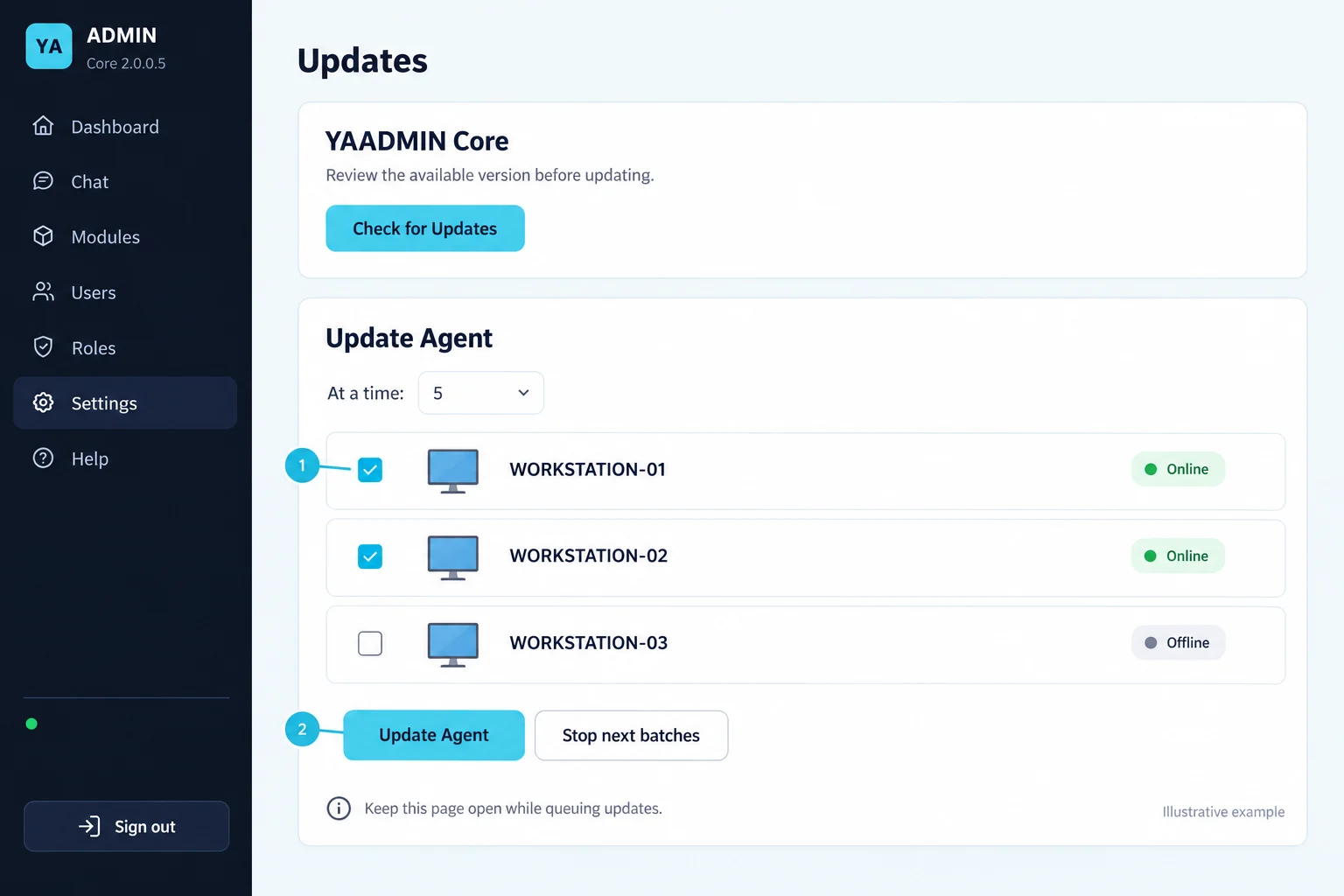
Update several Agents#
Select computers
Open the computer picker in update settings. Choose a group if needed, select Select all needing an update, then uncheck computers you want to exclude. Offline, already-current and unknown-version computers are not eligible for this selection.
Choose how many to update together
At a time controls the batch size: 1, 5, 20 or 50. Select Update Agent once and watch each computer's result.
Keep the page open
The next batch waits for checks of the previous one. Stop next batches stops later batches, not updates already started. Closing the page stops batches that have not been sent. This is not a persistent background queue that is guaranteed to continue after closing the browser.
Update an Agent without internet#
Download on a connected computer
Sign in to your website account and open Downloads. If Agent Updater is available for your release, download it and compare its SHA-256 checksum with the value shown. Do not replace a missing official link with a file from an unknown source.
Transfer and run it
Transfer the file to the computer with an existing Agent. Finish other Agent update operations first. Run the updater as a local administrator and wait for its result. It updates an existing Agent; it does not perform first installation or connect it to a different Core.
Check when connectivity returns
Once the computer can reach Core again, check Online and its version. A running local service while disconnected does not prove that the connection to Core has recovered.
Modules and access to new versions#
Follow the separate module installation guide. Disable an active module before replacement when instructed.
Pro and Enterprise include perpetual use of purchased versions and 12 months of edition updates. A further 12 months of updates is optional and costs 50% of the current full edition price for returning customers. Free edition updates remain free. Paid modules keep their separate update terms. Technical support has its own coverage period. Third-party subscriptions and API usage are not included. No automatic recurring charges.
Recorded development verification: one real Agent updated to 0.3.17. The group interface used synthetic records; a full independent offline cycle remains to be checked. Older instructions describing all update work as package staging no longer describe the current implementation.